

Once you’ve built a workflow, the Workflows page is where you organize, share, and manage them. Each workflow is a reusable sequence of blocks that you can run with different inputs each time. Click Workflows in the left sidebar to open it.Documentation Index
Fetch the complete documentation index at: https://skyvern-mintlify-refresh-session-endpoint-1776470899.mintlify.app/llms.txt
Use this file to discover all available pages before exploring further.
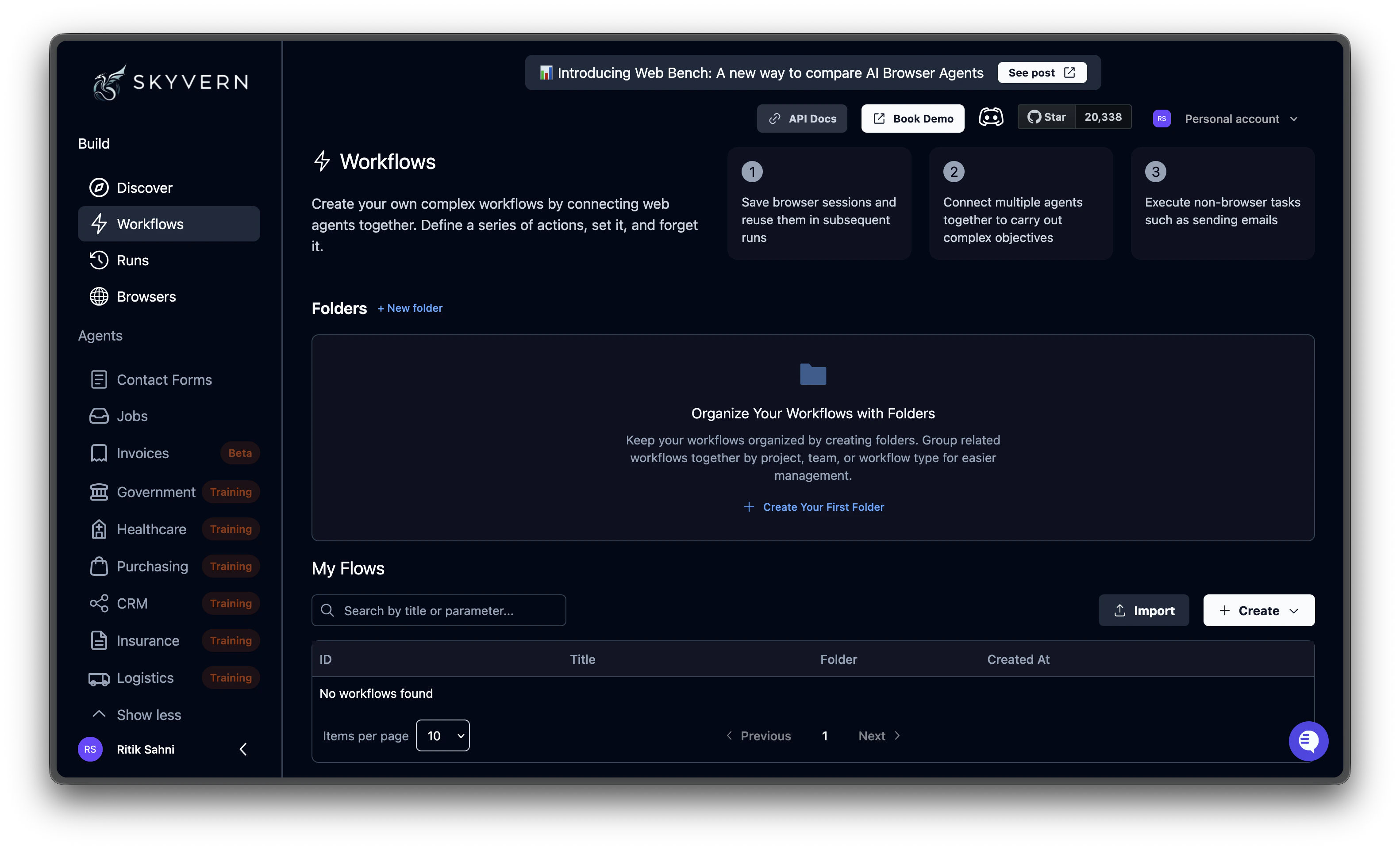
The workflows table
The table lists all workflows in your organization with the following columns:| Column | Description |
|---|---|
| ID | Unique workflow identifier |
| Title | Display name (click to open in the editor) |
| Folder | Folder assignment, if any |
| Created At | When the workflow was created |
| Actions | Inline buttons and three-dot menu |
Organizing with folders
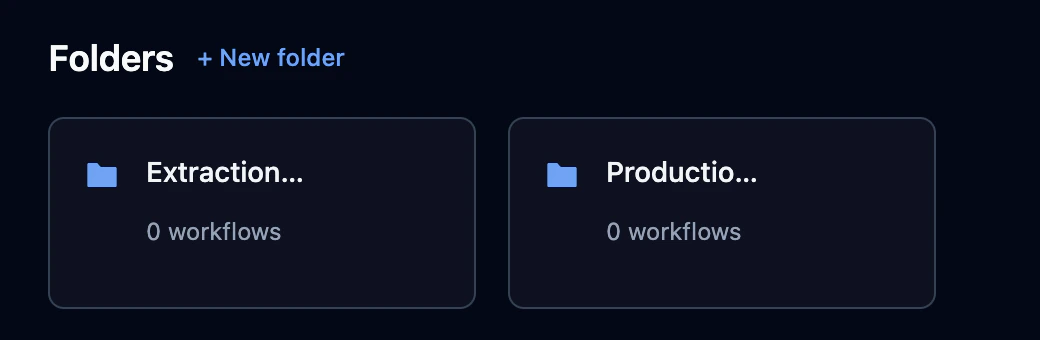
The top of the page shows your recent folders as cards. Use folders to group related workflows.- Click + New folder to create one
- Click a folder card to filter the table to that folder’s workflows
- Assign a workflow to a folder using the folder icon in the table row
- Click View all to see all folders when you have more than five
Searching and filtering
Use the search bar above the table to filter workflows by title or parameter. The results highlight matching text and auto-expand parameter rows when a parameter matches. The items-per-page selector at the bottom lets you choose 5, 10, 20, or 50 rows per page.Workflow actions
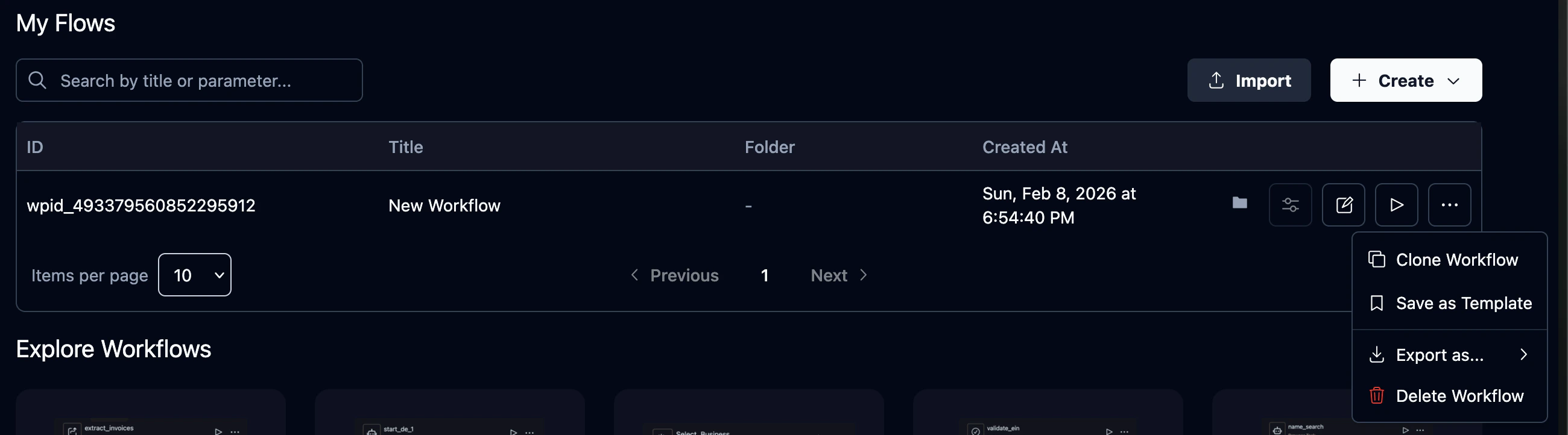
Click the three-dot menu on any workflow row to access these actions:| Action | What it does |
|---|---|
| Clone Workflow | Creates a copy named “Copy of …” with the original title |
| Save as Template | Makes this workflow available in the organization template gallery. A bookmark icon appears next to the title. |
| Remove from Templates | Removes the workflow from the template gallery (appears instead of “Save as Template” for templates) |
| Export as… > YAML | Downloads the workflow definition as a .yaml file |
| Export as… > JSON | Downloads the workflow definition as a .json file |
| Delete Workflow | Opens a confirmation dialog, then permanently deletes the workflow |
Importing workflows
Click the Import button to upload workflow files.| Format | Behavior |
|---|---|
.yaml / .yml | Parsed and created as a new workflow |
.json | Converted to YAML internally, then created |
.pdf | Sent to the AI to generate a workflow from a Standard Operating Procedure document |
What’s next
Open the Editor
Build automations visually with the workflow editor
Add Parameters
Make workflows reusable with dynamic input values