

Connect Skyvern to Workato’s enterprise automation platform. Trigger browser automations from any recipe, or route Skyvern’s results into downstream actions.Documentation Index
Fetch the complete documentation index at: https://skyvern-mintlify-refresh-session-endpoint-1776470899.mintlify.app/llms.txt
Use this file to discover all available pages before exploring further.
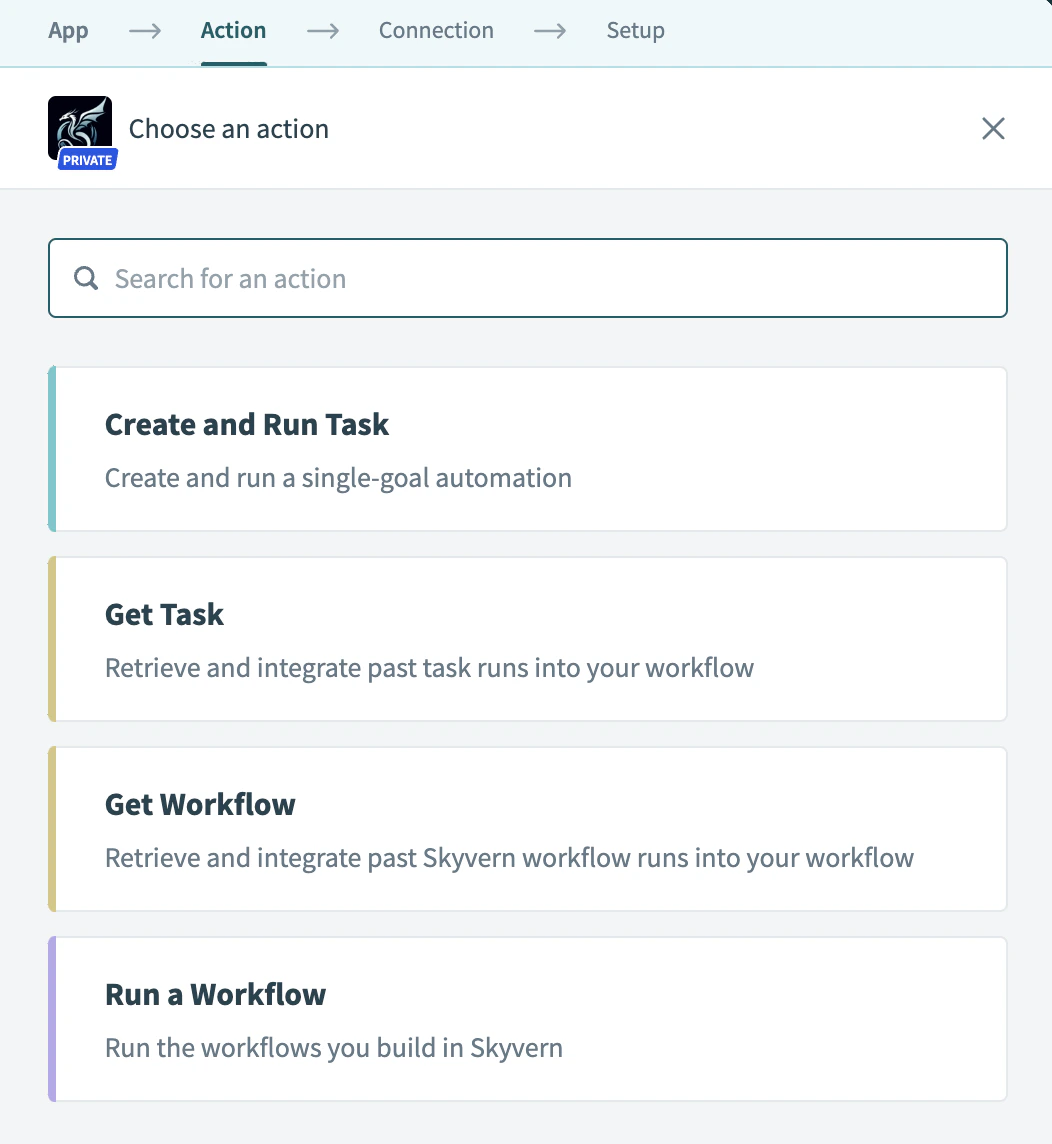
Available Actions
- Create and Run Task — Run an automation using Skyvern 1.0 (simple, single-step goals)
- Create and Run Task V2 — Run an automation using Skyvern 2.0 (complex, multi-step goals)
- Run a Workflow — Run a pre-built Skyvern workflow with parameters
- Get Task / Get Task V2 — Retrieve results from a previously run task
- Get Workflow — Retrieve results from a previously run workflow
Setup
Install the connector
Go to the Community Library tab, search for “Skyvern” under custom connectors, and click Install → “release latest version”.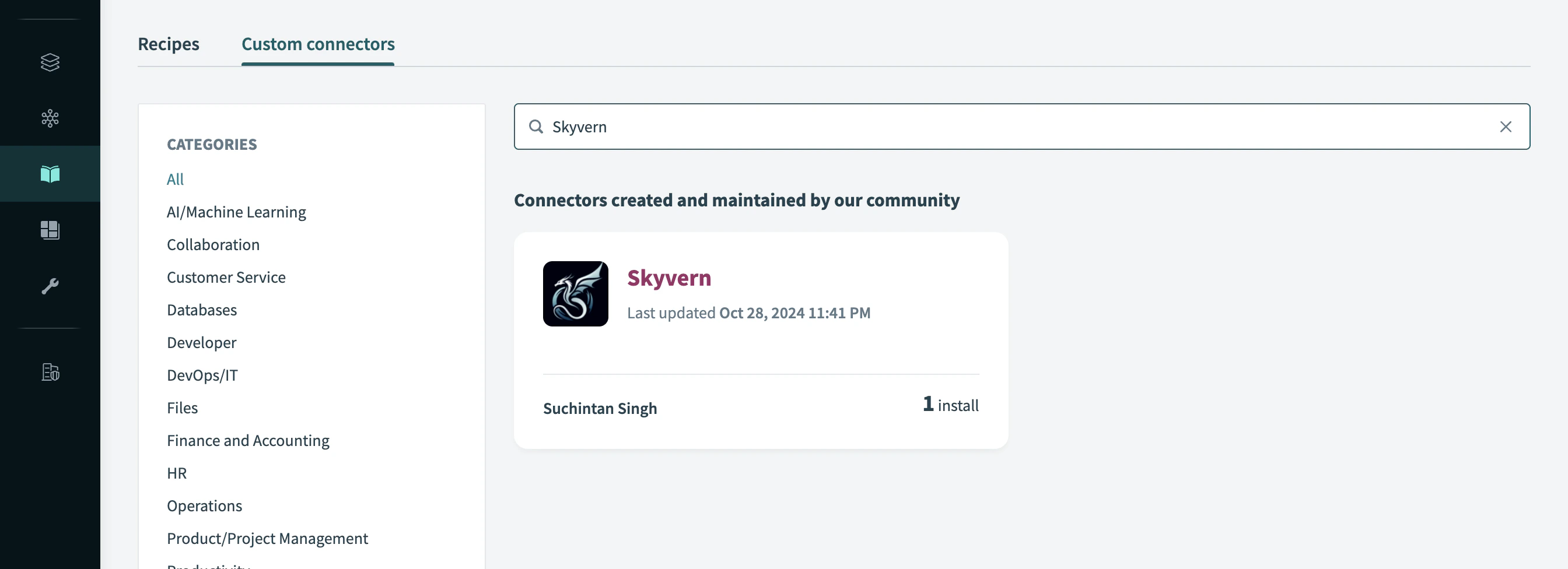

Add Skyvern to your recipe
Create a new recipe or edit an existing one, add an action, and search for “Skyvern”.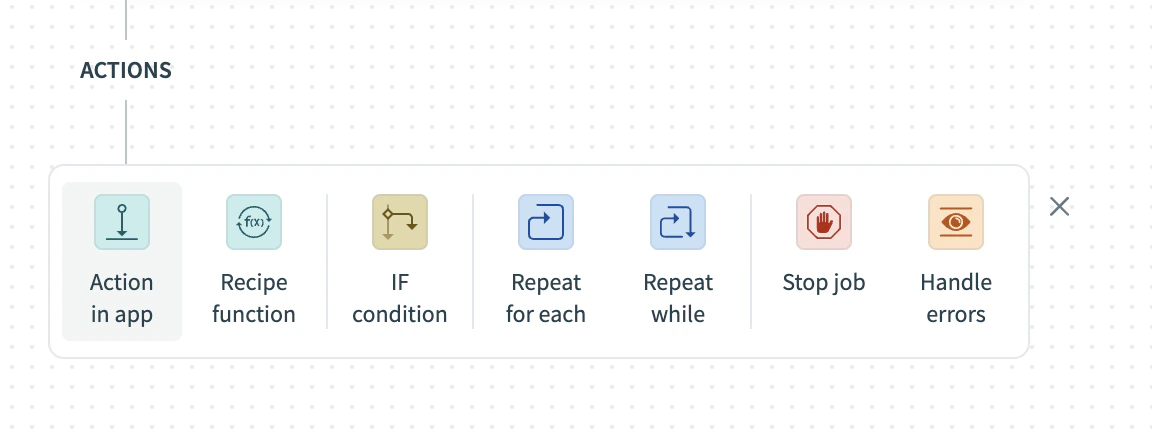
Connect your account
Paste your API key from Settings and save the connection.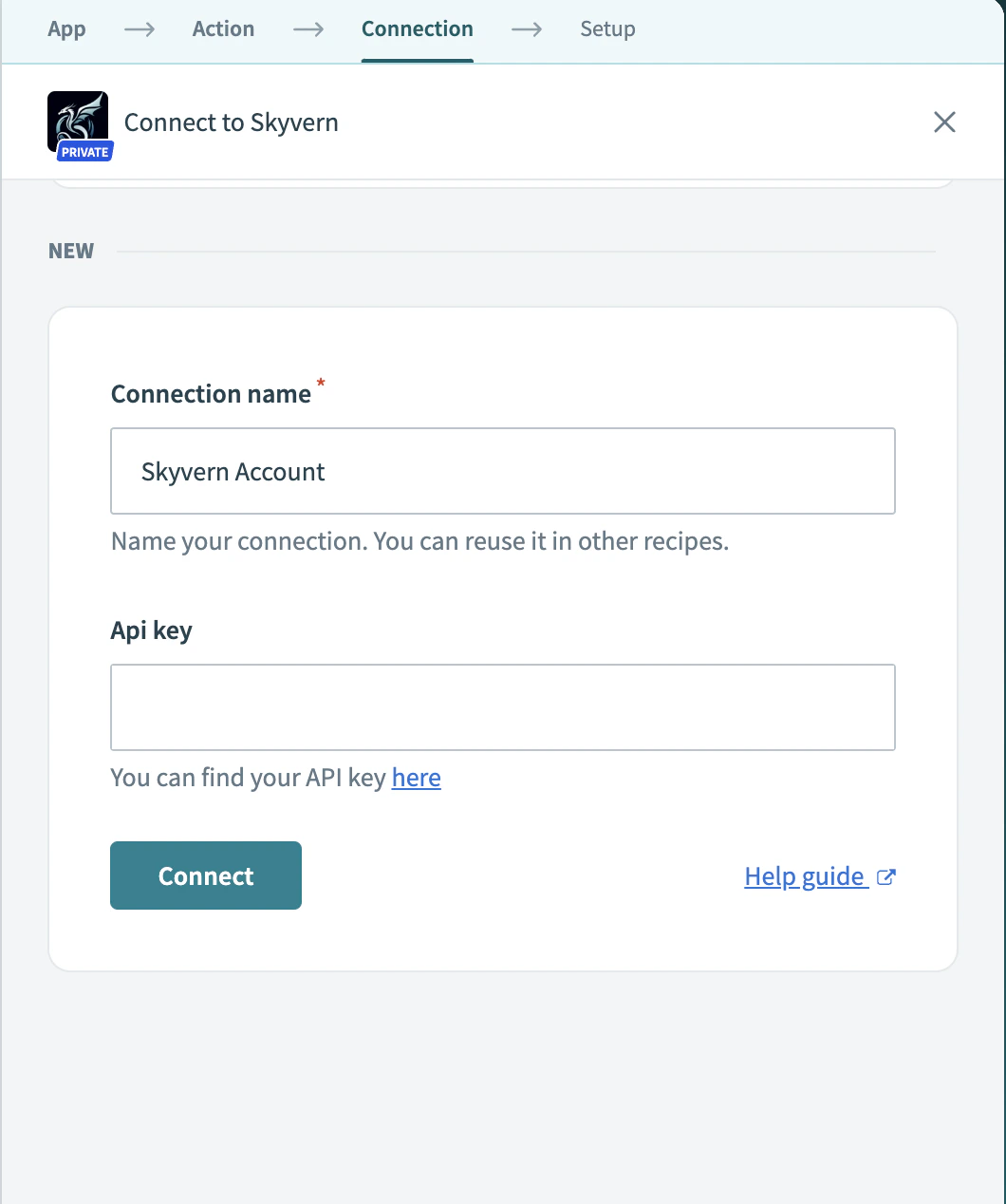
Test
Click Save then Test recipe and monitor progress in your Skyvern dashboard.
Field reference
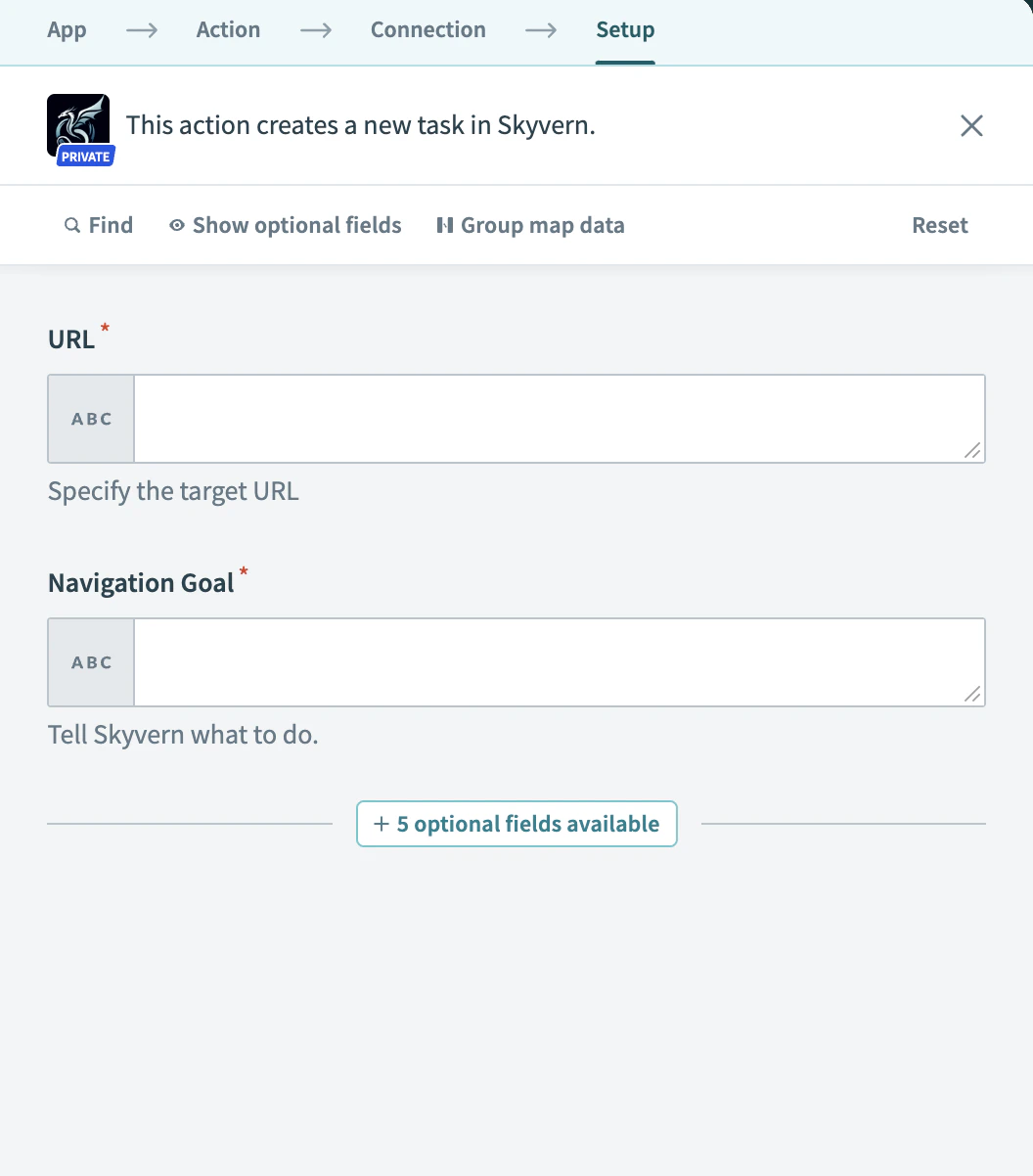
Create and Run a Task
- URL (required) — The starting page for the automation
- Navigation Goal — What Skyvern should do on the page. Omit if only extracting data.
- Data Extraction Goal — What data to pull from the page
- Navigation Payload — JSON input data for forms. Lets you reuse the same task with different data.
- Extracted Information Schema — JSON schema defining the shape of extracted data
- Webhook Callback URL — URL to notify when the task finishes
- Max Steps — Cap the number of steps to control costs
The navigation goal describes what to do after loading the URL. Don’t include “go to website X” — use the URL field instead.
Run a Workflow
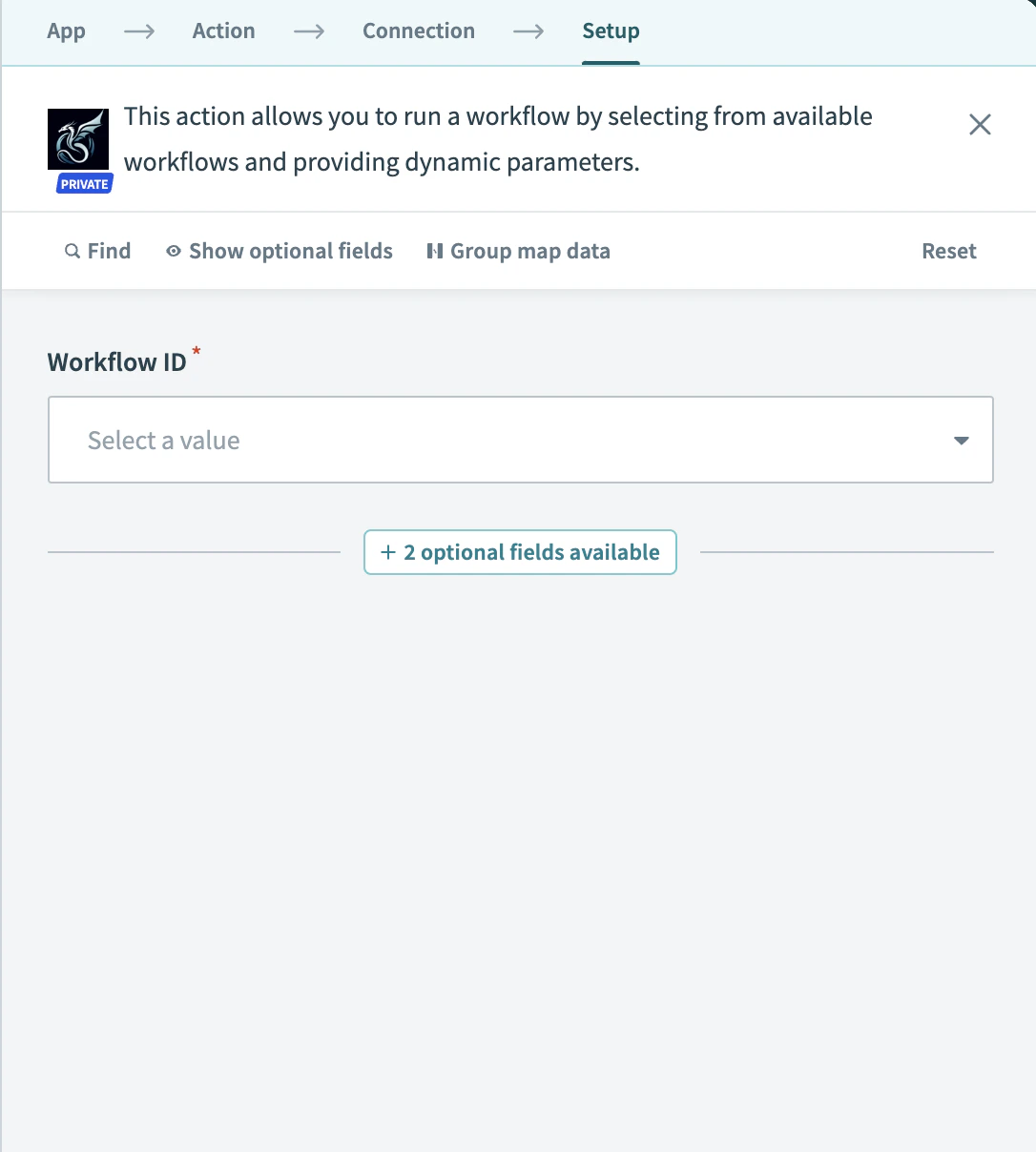
First, create your workflow in the Skyvern UI.- Workflow (required) — Select the workflow to run
- Parameters — Fill in any parameters defined in your workflow
Get Task / Workflow
Retrieve the details of a completed run.- Task ID (required) — Starts with
tsk_ - Workflow Run ID (required) — Starts with
wr_
Next steps
Build Workflows
Create reusable multi-step automations in Skyvern
Use Webhooks
Get notified when tasks complete